

Grackle PDF is a browser-based tool that builds the tagging a screen reader depends on directly into your PDF: structure, reading order, tables, and alt text, all handled in one pass. This guide walks you through the full workflow, from loading a file to exporting the finished version, so you know what to check and where to find it.
Loading a File
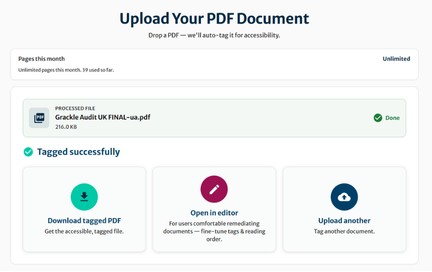
Drag and drop a PDF into the upload window, then select “Tag My PDF.”
Behind the scenes, Grackle PDF scans the entire file, deciphering structure, reading order, tables, and every image to build the tagging a screen reader needs to make sense of it. Work that used to require a trained specialist and a chunk of an afternoon happens here in well under a minute.
Once tagging finishes, you can:
- export the file right away,
- open it in the editor for a closer look,
- or move on to your next document.
If it’s your first time working with a particular layout, a quick pass through the editor is worth the extra few minutes.
The Editor at a Glance
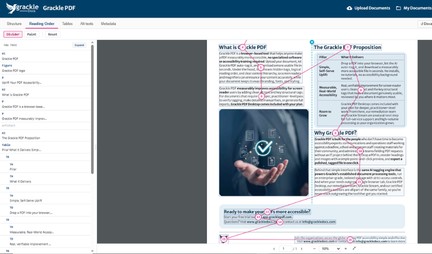
Work inside the editor is split across five tabs, ordered to match how you’d naturally move through a document: Structure, Reading Order, Tables, Alt Text, and Metadata. You don’t have to touch every tab on every file. Jump to whichever one needs attention, or work through them top to bottom.
Structure & Headings
The Structure tab shows how Grackle PDF has organized your document under the hood, with every paragraph, list, and heading assigned a tag that tells assistive technology what it is. This part is largely automatic with Grackle PDF, though it’s normally the most time-consuming bit of PDF work when done manually.
Headings are the one area worth a closer check. Many screen reader users pull up a list of a document’s headings and jump straight to the section they need, similar to using a table of contents. If a heading is tagged at the wrong level, an H3 sitting where an H2 belongs, that list stops accurately reflecting the document’s structure. Select any heading in the Structure tab and adjust its level from the dropdown until the hierarchy reads correctly, then move on to reading order.
Reading Order
Reading order is a layer underneath the page, invisible when you’re looking at the document, that tells assistive technology what sequence to move through the content in. A document can look perfectly organized on screen while that underlying order is scrambled. This is exactly why a multi-column layout needs a second look: your eye can scan across a page in a way a screen reader can’t follow on its own.
The Reading Order tab includes a divider tool built for this. Draw an outline between each column, and the reading order rebuilds itself to match, finishing one column before moving to the next. For finer adjustments, reorder content directly in the tag tree. This is also where you’d move a figure (Grackle PDF’s tag for any image, chart, or graphic) earlier or later in the sequence depending on intended content flow and reader experience.
Tables
A screen reader doesn’t read a table, row by row, the way a sighted reader might scan one. It announces which column and row a given cell belongs to, so someone can keep track of where they are as they move through the data. That depends on correctly identifying the header cells, which Grackle PDF handles automatically when it detects a table, rows, columns, and header scoping.
Open the Tables tab to confirm the detection matches what you’d expect. Add or remove rows and columns as needed, and right-click any cell to set or change its header status. Even a table that looks correctly tagged is worth this quick check, since header scoping is easy for an automated pass to get slightly wrong.
Alt Text
Every meaningful image gets automatically generated alt text. Open the Alt Text tab to review it, and edit anything that needs to reflect your brand’s specific standards or context the tool has no way of knowing.
Not every image carries information a reader needs, though, and that’s where marking an image decorative comes in. For example, a background pattern or a stock photo used purely for visual interest doesn’t need a description; forcing a screen reader to announce one anyway adds noise before the reader ever reaches the content that matters. Marking an image as decorative lets someone skip straight past it, the same way a sighted reader’s eye already does.
Metadata
The Metadata tab is where you confirm the document’s author and a handful of other properties. There’s not much to it: a couple of fields, checked and done.
Exporting
Once you’ve been through the tabs you need, export the file. It’s worth opening the result in a separate PDF viewer and comparing it to the original: the layout, formatting, and visual design should be untouched. The only thing that changes is what happens underneath, for the assistive technology that depends on it.
Wrap-Up
That’s the full path through Grackle PDF: structure and headings, reading order, tables, alt text, metadata, then export. The first document you tag will probably take some getting used to. By the third or fourth, it’s a quick pass built into how you already publish, not a separate project.