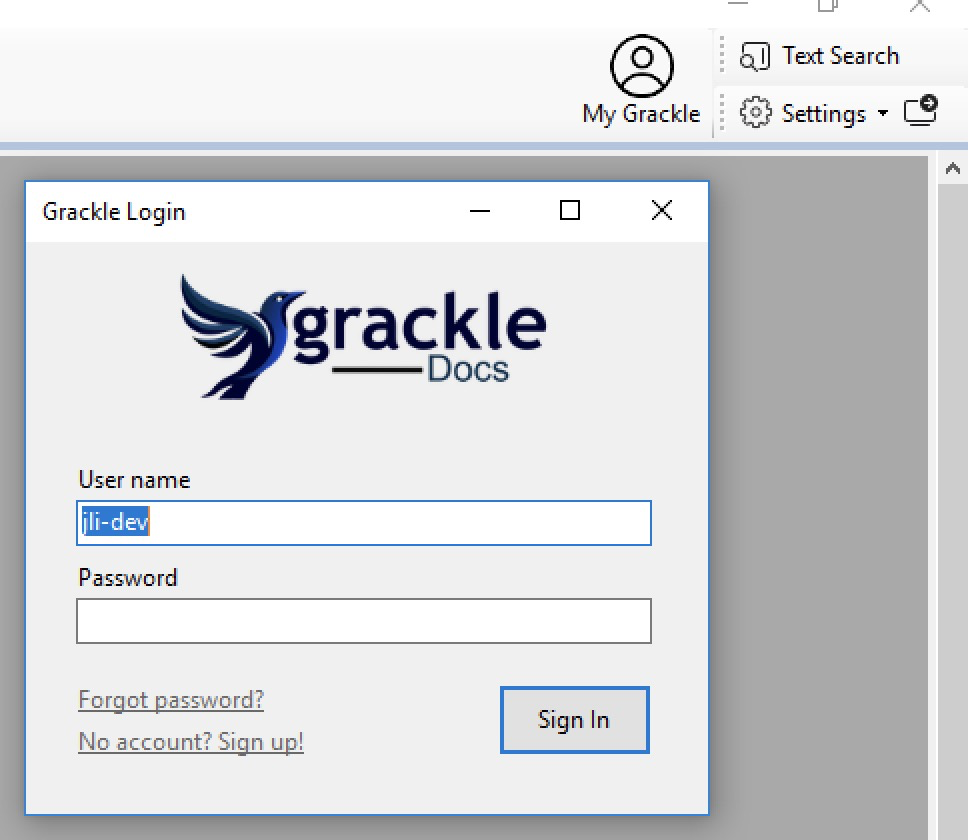
Sign-in Button – Retrieve license and other account information with your Grackle account sign-in. The License Info tab of the About Box would now show the license information.
Marked Flag – When a file contains structure, a flag will be shown at the far right side of the Tags toolbar, which you can toggle on and off to indicate whether the file should be marked as PDF/UA or not.
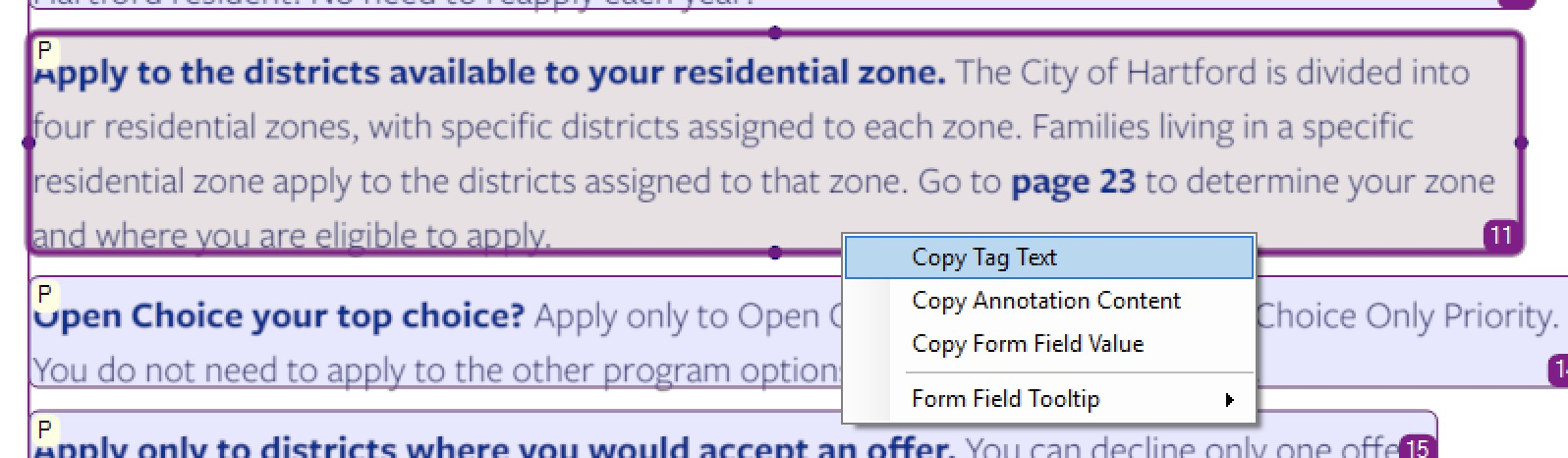
Text Copying – When you are using the MCID or Tag mode in the page view, you can click on the edge of a MCID or Tag block to select it, and then right-click and copy its text.
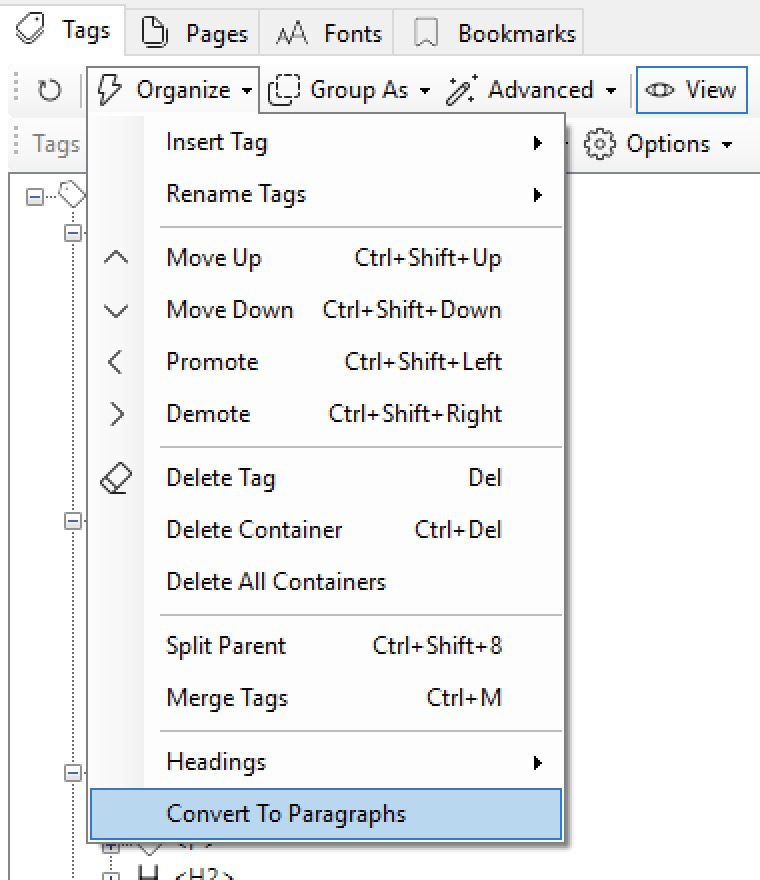
Tags to Paragraphs – You can select almost any tag and convert it to paragraph(s). Special treatment is given to Table, L, and TOC tags so that the containers are removed while items and cells are converted to paragraphs. Useful in fixing wrongly tagged portions.
Page Extraction – Now improved to preserve tags as much as possible. Select one or more pages (use Ctrl or Shift while clicking) and then choose “Extract Pages” from the “Pages” menu.
Table Wizard
Thumbnail View – The “Page View” button is redesigned to show thumbnails of pages at right hand side that:
Highlights the current table in red lines in the thumbnail;
Is clickable for multi-page tables to just load the portion of table only on that page;
Hiding the thumbnails by unchecking the Page View button will force the wizard to display all rows of a long table.
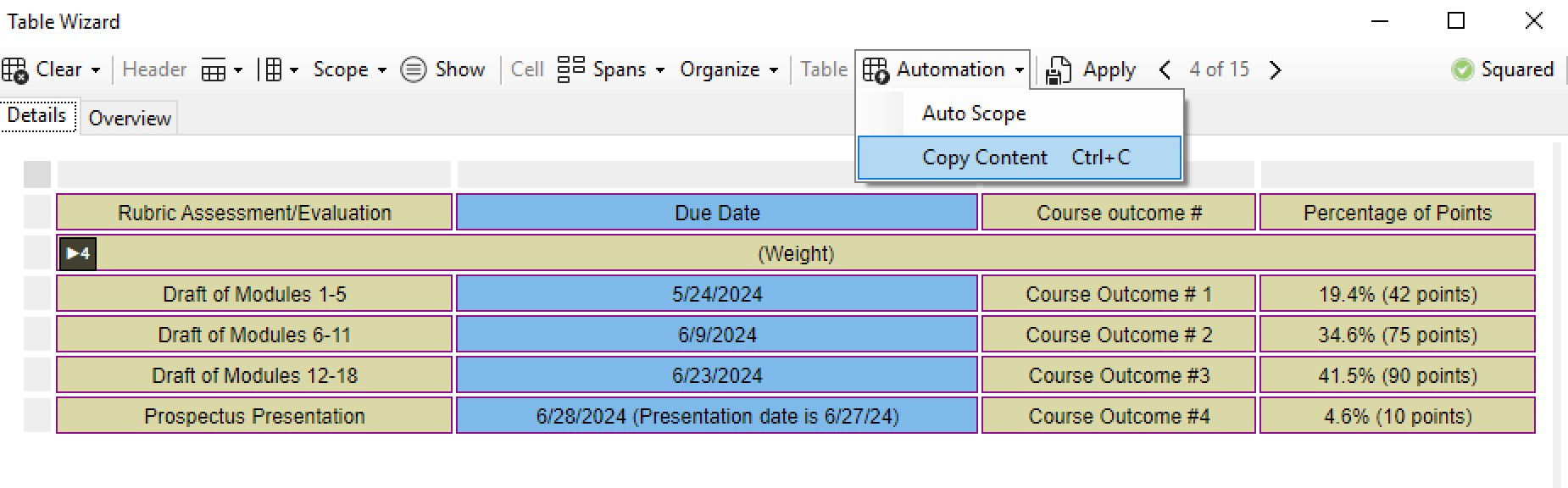
TSV Copying – In Table Wizard, you can copy selected cells in TSV that you can paste elsewhere such as Excel or Google Sheet.
Link Wizard
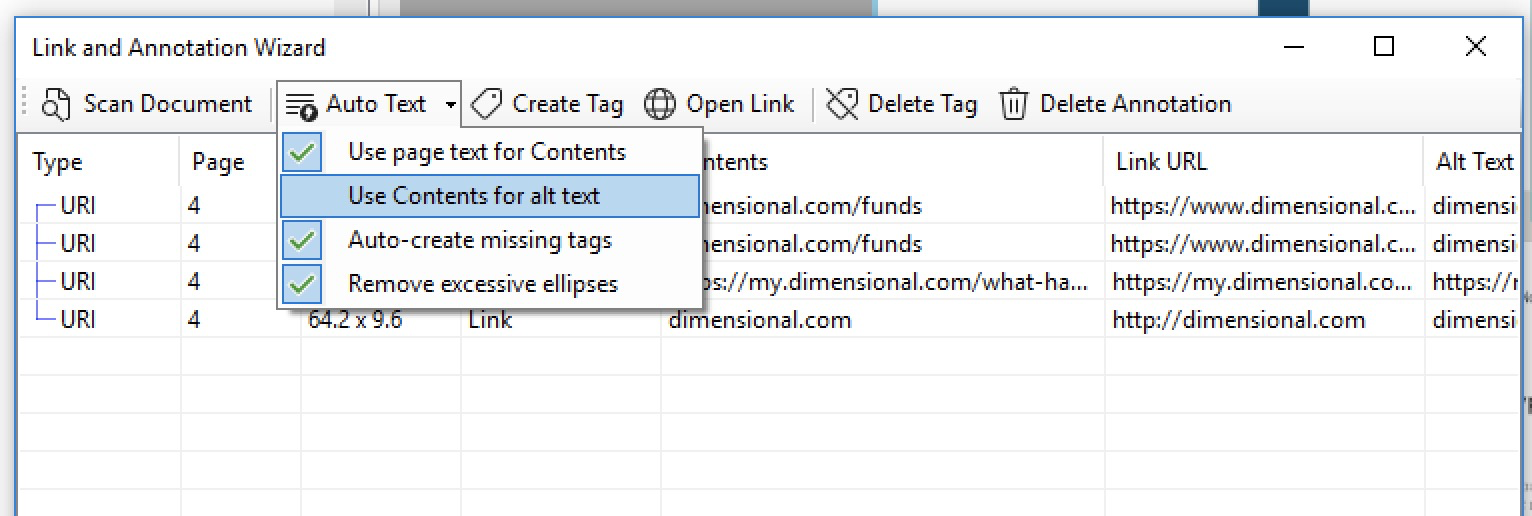
Auto Text Refined – A new option is provided so that you can specify whether to propagate the Contents of an annotation to the Alt Text field of its tag (if not set). It also now supports in-place editing of Contents, Link URL, and Alt Text.
Ability to Delete – A pair of buttons are added for deleting the selected links or annotations. Delete annotation would remove both the annotation and the associated OBJR (if any). Delete tag only removes the OBJR but the annotation itself remains. However, even though the OBJR is removed, any tag that refers to the OBJR remains.
Role Map
In-place Editing – You can edit role mapping by clicking in the cell and edit in-place.
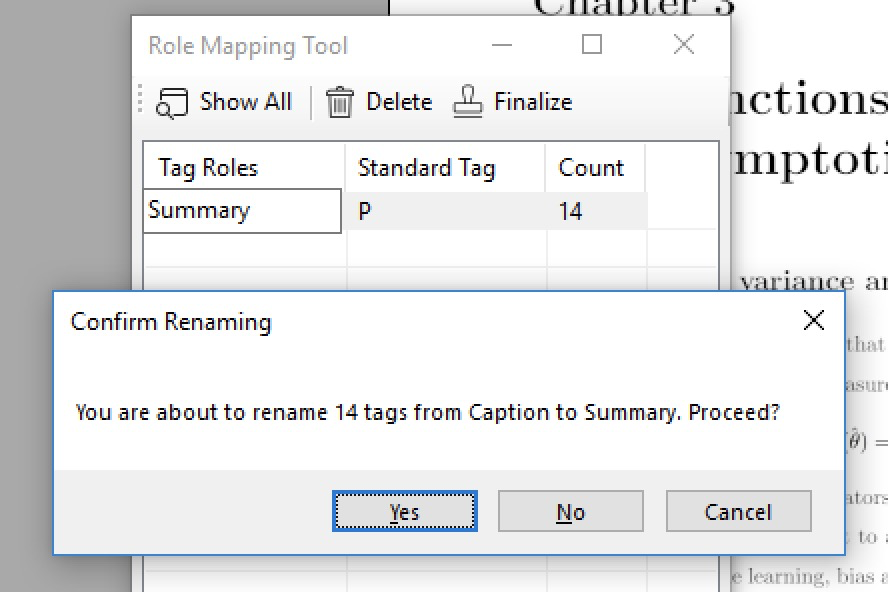
If you change a cell in the “Tag Roles” column, you are renaming those tags to new roles.
If you change a cell in the “Standard Tag” column, you are establishing a new mapping.
If you delete the row with the “Delete” button, that mapping is removed, but tags are intact.
If you click the “Finalize” button, the selected mapping is used for renaming tags, and the mapping is then removed.
Struct Parents Tree
MC and Tag Fixes – MCID appearing in more than one tag is now detected and fixed; duplicate MCIDs in XObjects now better handled.
Artifacting – Syntax better ensured after artifacting introduces additional operations, which may have to affect existing page composition sequences; XObjects are now artifacted better, whether they are tagged as a whole or they contain their own marked sequnces.