
Helps make every Word doc and PowerPoint accessible, without leaving Microsoft 365.
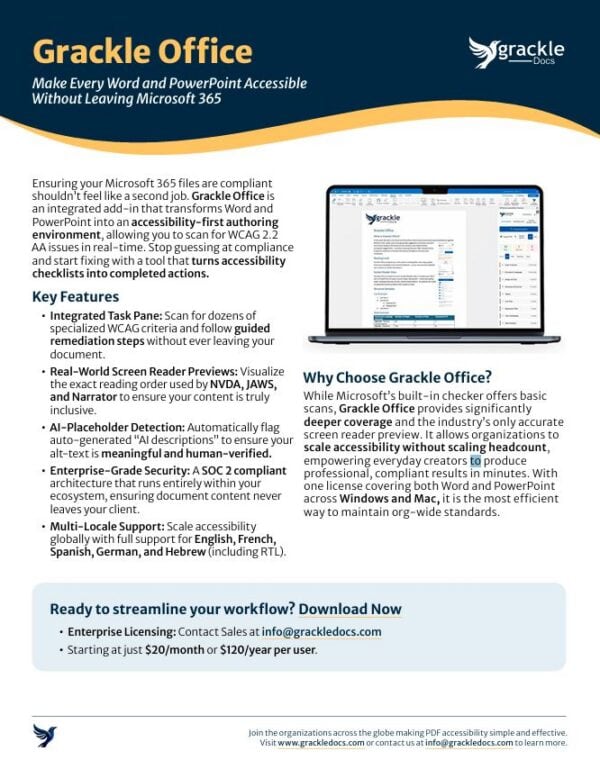
Grackle Office is the Microsoft 365 add-in that turns Word and PowerPoint into an accessibility-first authoring environment. Scan for WCAG 2.2 AA issues, follow guided fixes, and preview exactly how screen readers will announce your content—all in one integrated task pane.
Stop guessing. Start fixing. Just $20/month or $120/year per user.
Show Transcript
Video Transcript: Grackle Office Demo
Grackle Office finds accessibility problems in Word documents and PowerPoint decks and helps fix them with as few clicks as possible. In this short walkthrough, I’ll open a sample document and show you three of the most common issues—color contrast, image alt text, and fake lists—and how Grackle handles each one.
[The Grackle Office task pane appears on the right side of the Microsoft Word interface.]
Everything we need is here. I click “Check Document,” and Grackle scans the entire file. In a moment we get a summary at the top, then the detailed results below, grouped by issue type. Right away it finds five fails we need to focus on. Clicking the “Fail” button helps me see them.
[The user selects an error labeled ‘Image has no alt text.’]
It shows that an image in this document has no alt text set, which means screen readers will announce something like “image” unless it is marked as decorative. Clicking the fail card makes the page jump directly to the image. I have already prepared the alt text I want for this image so that I can cut and paste it easily into the Alt Text pane. I click “Fix,” the Alt Text dialog opens, I enter the text, and click “Save.”
Now for fake lists. These are paragraphs where someone typed dashes or numbers by hand instead of using built-in list styles. They look like lists, but assistive technology has no way to know they are. With one click, the typed dashes become a real bulleted list. It’s the same process for numbered lists. Grackle sees that this looks like a numbered list and automatically turns it into the correct list type so that assistive technology can read it properly.
The last category is Color Contrast. Grackle has flagged two paragraphs where the text color is too light for the background. Each entry tells me the hex values of the colors used.
[A dialog box displays the current color contrast ratio alongside a suggested compliant color.]
The dialog shows the current color side-by-side with a suggested replacement that meets WCAG standards and the new ratio. You will notice that Grackle has done its best to stay within your color range while remaining compliant. Clicking “Fix,” then “Apply Suggested Color,” automatically updates the selection on the page to the new color.
A quick re-scan confirms the document is now clean for color contrast, alt text, and lists. The whole walkthrough took under two minutes, and the document is in much better shape for everyone who reads it.
Ready to get started? Let us guide you to digital compliance. Find us at grackledocs.com or email us at info@grackledocs.com today!
Ready to turn accessibility compliance from a checklist into a completed action? Start scanning your Microsoft 365 files today.
Accessibility that lives where you work.
Grackle Office is built directly into Word and PowerPoint, allowing your team to fix accessibility bugs without ever leaving the document.
Guided fixes for every user.
Turn complex WCAG requirements into simple, actionable steps. Follow guided suggestions to resolve accessibility issues in real-time, ensuring your documents meet compliance standards without requiring specialized expertise.
Real-world screen reader previews.
Don’t guess how assistive technology will handle your content. Visualize the exact reading order used by NVDA, JAWS, and Narrator to ensure your document is truly inclusive.
Trusted by document creators and compliance teams across Enterprise, Education, and the Public Sector.
• Real-World Screen Reader Preview
• AI-Placeholder Detection
• Enterprise-Grade Security
• Multi-Locale Support
Who is Grackle Office for?
One add-in. Complete document accessibility.
Full-spectrum Automated Checks
Covers image alt text, heading hierarchies, table headers, color contrast, and more across Word and PowerPoint
Guided Remediation
Don’t just find problems, fix them. Our interface walks users through each change with modal dialogs and clear instructions.
Accurate Reading Order Preview
See and hear the exact sequence that NVDA, JAWS, and Narrator will announce, matching the true z-order of your slides.
AI-Placeholder Detection
Automatically flags auto-generated “AI descriptions” so you can ensure your alt text is meaningful and human-verified.
Multi-Locale Support
Available in English, French, Spanish, German, and Hebrew (with full RTL support).
Frequently Asked Questions
- Is my document content secure?
Yes. Grackle Office runs inside the Microsoft Office environment. Your document content never leaves your machine, there is no AI processing or server-side conversion involved.
How is this different from Microsoft’s built-in Accessibility Checker?
Grackle Office provides significantly deeper coverage (testing across dozens more specialized accessibility criteria in Word and PowerPoint than MS’s basic checks), guided remediation to help you fix errors, and an accurate screen reader preview that Microsoft doesn’t offer.
Does one license cover both Word and PowerPoint?
Yes. Unlike competitors who sell separate products for each application, Grackle Office is a single add-in that provides full functionality across both Word and PowerPoint.
Built by the experts in digital inclusion.
WCAG 2.2 AA Compliant UI
The Grackle Office task pane itself meets the same accessibility standards it enforces, supporting full keyboard and screen reader navigation.
SOC 2 Compliant
Our organization-wide security standards ensure your data is protected at every level.
Microsoft Marketplace Verified
Published and maintained as a verified Microsoft 365 add-in for seamless deployment.
Trusted by teams in
- Government
- Higher Education
- Enterprise
- Healthcare
- Financial Services
Accessibility from the ground up.
Need to go beyond the Microsoft Environment?
