Hello readers,
My name is Ryan, and I was born with a rare genetic eye disease. Amongst other things, this causes issues with reading small print. With assistive technology and accessibility functions, it has become possible for me to work in a way I could have never done only a few decades ago. I’m now at the end of completing a bachelor’s degree in psychology, criminology, and justice. In this newsletter, I will share some of the technology and functionalities I have become accustomed to using daily.
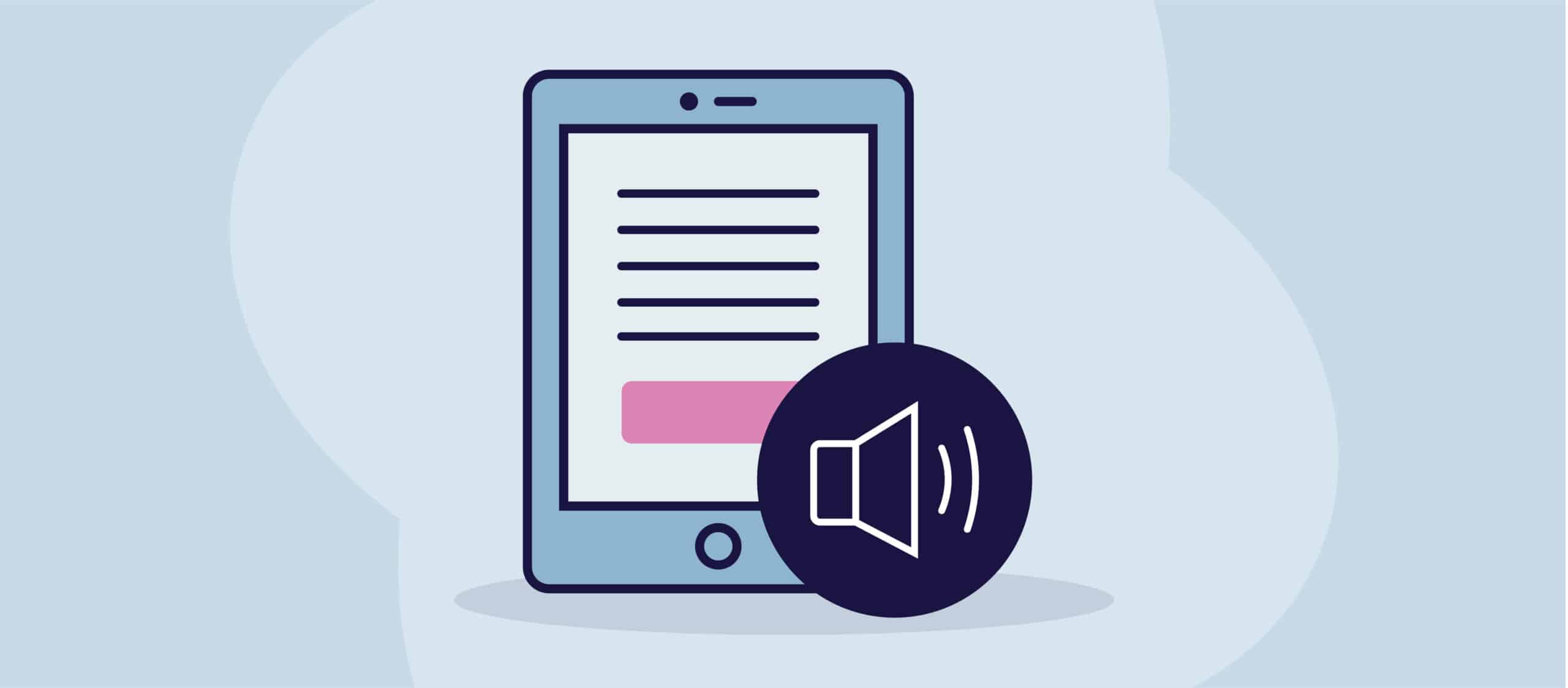
I use my iPad for most tasks, so I will focus on iOS apps. For daily reading, I use the iPad’s Speak Screen function. With Speak Screen, you swipe down with two fingers, and it will read aloud the text on the screen. A tab will appear with speech controls turned on, providing you with controls such as play, stop, forward, backwards, and speech speed. I prefer this over the Voice Over function, as you can perform other tasks while reading or lock the iPad and keep listening. Anyone familiar with Voice Over knows that when you attempt to perform other tasks or lock the screen, the reading will stop. This can be very frustrating. Click here for more information on the Speak Screen function.
Occasionally I need to read a document scanned in print form, and I would always need someone to read this to me. However, I’ve found an app that can either scan or import a document and read it. Click here for more information on the OneStep Reader.
Another great function I use in the Safari browser is the Show Reader view, which works on many web pages. This function can be activated by tapping the two As at the far left of the address bar and pressing Show Reader. Once activated, it removes all unnecessary text (such as ads), and you can adjust the text size to suit your preferences. For pages you regularly use, you can turn Show Reader on permanently, which is handy.
This is just a short introduction regarding some of the iOS functions I have become dependent on for reading in my daily life. I hope that this information can be helpful to you. Thank you for reading and take care.